spEXplore Documentation
spEXplore is an interactive browser tool for exploring and measuring one‑dimensional astronomical spectra (wavelength vs. flux). It lets you overlay spectral‑line markers, shift them with redshift and per‑line velocities, fit Gaussian line profiles (single or blended/multi‑component), read off line measurements with uncertainties, and collect the results into an exportable table.
Everything runs locally in your browser; your data never leaves your machine.
Table of contents
- Quick start
- Loading a spectrum
- The plot and navigation
- Wavelength frames: redshift and velocity
- Spectral line markers
- Line sets (line groups)
- Cleaning the spectrum: binning and deleting sections
- Profile fitting
- Fit measurements and their definitions
- Uncertainties
- Multi‑profile (blended line) fitting
- The results table
- Error estimation
- Downloading the figure and plot data
- Sessions: saving and restoring work
Quick start
- Go to the spEXplore app
- Load a spectrum — a two‑column ASCII file (wavelength, flux) or a FITS file — with the Load spectrum button or by dragging it onto the plot.
- Optionally set the Redshift so that known features line up with the spectrum, and add or edit line markers.
- Click Fit profile, choose a fitting method, and click the requested points on the plot to fit a line.
- Read the measurements on the resulting fit card.
- Click Tabulate to assemble a results table, then Download CSV/JSON.
- Save Session to store everything (spectrum, lines, fits, table) in a
single
.spxfile you can reload later.
If you need to work on multiple similar spectra, just load another spectrum, this will only remove the profile fitting, other setting, line markers, and tables will remain. Then do the analysis and fitting, then click Append row, this will append the new fit results to the table. After done with all spectra you can download the tabulated data.
Loading a spectrum
The tool reads two formats: two‑column ASCII and FITS. Load a file with the Load spectrum button or by dragging it onto the plot.
ASCII files
Plain two‑column text: the first column is wavelength, the second is flux.
Accepted extensions include .txt, .dat, .ascii, .csv, .spec, and
.flm. Columns may be separated by whitespace or commas.
- Comment lines beginning with
#,%,;, or//are ignored. - Rows that do not contain two finite numbers are skipped.
- Points are automatically sorted by increasing wavelength.
FITS files
FITS files (.fits, .fit) are read directly in the browser. Because a single
FITS file can hold a spectrum in several ways — and can contain more than one —
the tool scans every HDU and collects all the 1‑D spectra it can build. If
more than one spectrum is found, you are asked which to load (each option lists
its HDU, point count, and how the wavelength axis was derived); if only one is
found it loads automatically.
Supported layouts:
-
Image HDUs — a 1‑D flux array with the wavelength axis taken from the standard WCS header keywords (
CRVAL1,CRPIX1,CDELT1/CD1_1,CTYPE1), for both linear and log‑linear sampling:\[ \lambda_i = \text{CRVAL1} + (i + 1 - \text{CRPIX1})\,\text{CDELT1},\]
with \(\lambda_i \rightarrow 10^{\lambda_i}\) when the axis is logarithmic (e.g.
CTYPE1ending in-LOG, orDC‑FLAG = 1). Integer and floating‑point data (BITPIX8/16/32/64, −32, −64) are supported, withBSCALE/BZEROapplied. Multi‑dimensional images (e.g. several orders or bands) are offered as one selectable spectrum per slice, including IRAF multispec dispersion (WATkeywords) for linear and log‑linear solutions. -
Binary‑table HDUs — wavelength and flux are taken from named columns, detected automatically (e.g.
wavelength/lambda,flux, and SDSS‑styleloglam, where \(\lambda = 10^{\text{loglam}}\)). Both one‑row‑per‑pixel tables and single‑row vector columns are handled. -
Spextool / SpeX / FIRE style - 1-D data, but with no
WCS. Thewavelengthis in firstHDU[0], andfluxanderrorare in next HDUs.
If no wavelength solution is present, the pixel index is used as the x‑axis (the chooser notes this). As with ASCII, points are sorted by wavelength and the λ units selector below still applies (so a wavelength axis in nm/µm/etc. is converted to Å). Very specialised cases — IRAF ASCII tables and non‑linear multispec dispersion functions — are not fully supported and fall back to a linear axis where possible.
Wavelength units (λ units)
By default the wavelength column is assumed to be in Ångström (Å). If your file uses a different unit, choose it from the λ units selector; the tool multiplies every wavelength by the corresponding factor to convert to Å:
| Selection | Factor (× to get Å) |
|---|---|
| Å | 1 |
| nm | 10 |
| µm | 10⁴ |
| mm | 10⁷ |
| pm | 0.01 |
All downstream quantities (axis, marker positions, fitted wavelengths, widths) are therefore expressed in Å.
Loading from a link (URL parameters)
A spectrum or a saved session file link can be opened automatically by encoding it in the app's URL address, which makes online spectrum configured to load in the app be shared as a single link. This makes it possible to embed the link of the app in other portals, such that the app can directly load the spectrum when link is opened:
| Parameter | Purpose |
|---|---|
?url=<link> (or ?file=<link>) |
Load a spectrum (ASCII or FITS) from the given URL. A .spx link may also be loaded as a session. |
?session=<link> |
Load a saved .spx session from the URL. |
?z=<value> (or ?redshift=<value>) |
Preset the global redshift after loading a spectrum (ignored for sessions, which carry their own). |
Examples:
https://astro.subhashbose.com/spexplore/?url=https://host/path/spectrum.txt
https://astro.subhashbose.com/spexplore/?url=https://host/path/spectrum.fits&z=0.05
https://astro.subhashbose.com/spexplore/?session=https://host/path/analysis.spx
A hash form is also accepted as a fallback — https://astro.subhashbose.com/spexplore/#https://host/path/spectrum.txt — and is removed from the address bar once loaded.
Two requirements apply because the file is fetched directly by your browser:
- the hosting server must allow cross‑origin access (CORS), and
- The linked file must be on https.
Error message is shown if the fetch is blocked or fails.
The plot and navigation
The central panel draws the spectrum as flux vs. wavelength. Note that the x‑axis is the rest‑frame wavelength (see Wavelength frames).
Tools (top‑right of the plot):
- Drag zoom (dashed‑box icon) — toggle, then drag a rectangle to zoom into a region.
- Pan (arrows icon) — toggle, then drag to move the view around; useful when zoomed in.
- + / − — zoom in/out about the current center.
- Reset (corners icon) — restore the auto‑scaled view that frames the whole spectrum.
On touch screens, a two‑finger pinch on the plot zooms (and pans, by moving both fingers together) at any time; a single finger drags the view when the Pan or Drag‑zoom tool is active, and otherwise scrolls the page as usual.
A live readout (bottom‑left) shows the rest‑frame and observed-frame wavelengths, and flux under the cursor.
Binning
The Binning points control replaces each plotted point by a centered moving
average over N neighbouring points, with the window truncated at the spectrum edges. Binning is purely a smoothing
aid for visualization and also affects the data used for fitting, so the
fit operates on the binned points you see. Set N = 1 for unbinned data.
Wavelength frames: redshift and velocity
The tool distinguishes three related wavelengths for any line, all connected by the relativistic Doppler relation.
1. Rest wavelength \(\lambda_\text{rest}\) — the intrinsic wavelength of the line.
2. Velocity shift. A per‑line radial velocity \(v\) shifts the rest wavelength by the relativistic Doppler formula
\[ \lambda_\text{shifted} = \lambda_\text{rest}\,\sqrt{\frac{1+\beta}{1-\beta}}, \qquad \beta = \frac{v}{c}.\]
The inverse (used to report a velocity from a measured wavelength) is
\[ v = c\,\frac{R^2 - 1}{R^2 + 1}, \qquad R = \frac{\lambda_\text{obs}}{\lambda_\text{rest}}.\]
3. Observed wavelength. Applying the overall redshift of the source / line-set \(z\) as \((1+z)\), and combining the doppler velocity shift, the observed wavelength is calculated. The observed wavelength of a line is
\[ \lambda_\text{obs} = \lambda_\text{rest}\,\sqrt{\frac{1+\beta}{1-\beta}}\;(1+z).\]
The plot works in the rest frame
The spectrum is displayed de‑redshifted to the rest frame: each observed data wavelength is mapped to
\[ \lambda_\text{rest-axis} = \frac{\lambda_\text{observed}}{1+z}.\]
A single line marker is drawn at \(\lambda_\text{rest}\) shifted only by its own velocity, \(\lambda_\text{rest}\sqrt{(1+\beta)/(1-\beta)}\). Consequently, when the global redshift equals the true source redshift, rest‑wavelength markers line up with the corresponding features in the data.
The Redshift control has both a numeric field and a fine slider. Editing either updates the rest‑frame mapping immediately.
Spectral line markers
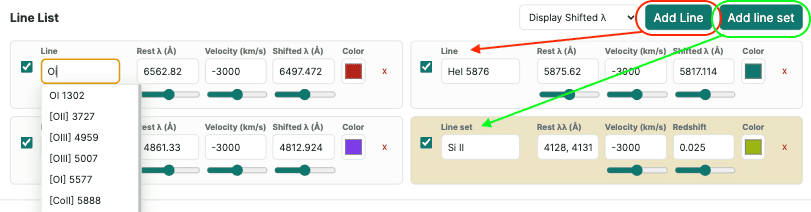
The Line List holds line markers drawn as vertical dashed lines on the plot. Each single line has:
- Show — visibility on the plot.
- Line — a name; typing offers autocomplete from a built‑in catalogue of common lines, and selecting one fills its rest wavelength.
- Rest wavelength (Å) — \(\lambda_\text{rest}\) (with a fine slider).
- Velocity (km/s) — the per‑line radial velocity \(v\) (with a fine slider).
- Shifted / Observed wavelength (Å) — a coupled field. In shifted display mode it shows \(\lambda_\text{shifted}=\lambda_\text{rest}\sqrt{(1+\beta)/(1-\beta)}\); in observed mode it shows \(\lambda_\text{obs}=\lambda_\text{shifted}(1+z)\). Editing this field back‑solves the velocity, keeping rest λ, velocity, and the shifted/observed value mutually consistent.
- Color — marker colour.
Use Add Line to append a blank line, and the × to remove one. The Display Shifted λ / Display Observed λ selector switches what the coupled column shows.
Common line velocity
The Common line velocity (km/s) control sets the same velocity on all shown lines at once — convenient for shifting an entire set of expected lines to a common kinematic offset. If the currently shown lines do not already share one velocity, you are warned before their individual values are overwritten.
Line sets (line groups)
A line set is a single card representing many wavelengths of one species (for example, the Balmer series, or a set of Fe II lines). Add one with Add line set. A line‑set card has:
- Line set — a name; autocomplete offers built‑in groups (H, He I, He II, C II/III/IV, N II–V, O I–VI, Na I, Mg I/II, Si II, S II, Ca II, Fe II/III, Telluric, Galaxy lines, Wolf–Rayet, …). Selecting one fills its wavelength list.
- Rest (Å) — a comma‑separated list of rest wavelengths (freely editable).
- Velocity (km/s) — one velocity applied to every line in the set.
- Redshift — a per‑set redshift (see below).
- Color — all lines of the set share this colour.
Every wavelength \(w\) in the set is drawn at the rest‑frame position
\[ x = \Big[\,w\,\frac{1+z_\text{set}}{1+z_\text{global}}\,\Big]\sqrt{\frac{1+\beta}{1-\beta}}, \qquad \beta = \frac{v_\text{set}}{c},\]
i.e. the line is placed at its own redshift \(z_\text{set}\), mapped into the rest‑frame axis (which is de‑redshifted by the global \(z_\text{global}\)), then shifted by the set velocity. When \(z_\text{set}=z_\text{global}\) the set sits at its rest wavelengths.
Redshift coupling. The per‑set redshift is one‑way tied to the global redshift: changing the top‑left Redshift pushes the new value into every shown set (you are warned if that would overwrite sets holding different redshifts). Editing a set's own redshift affects only that set and does not change the global value. This lets you place, say, host‑galaxy lines at one redshift and an intervening system at another.
Cleaning the spectrum: binning and deleting sections
Besides binning, you can mask spectral regions you do not want to see or fit through:
- Click Delete section, then click two points on the plot. The wavelength range between them is removed from the displayed/fitted spectrum and listed under Deleted Sections.
- Remove a masked region from that list to restore it.
Deletions are useful for excising cosmic rays, detector artifacts, or gaps before fitting.
Profile fitting
Click Fit profile to enter fitting mode, then click the points the chosen method requires (a prompt at the top of the plot guides each click). Each click is marked; after the final click the fit runs and a fit card appears.
The model
A fitted line is a single Gaussian on top of a local continuum \(C(\lambda)\):
\[ f(\lambda) = C(\lambda) + A\,\exp\!\left[-\frac{(\lambda-\mu)^2}{2\sigma^2}\right].\]
- \(A\) — amplitude (height above continuum; negative for absorption),
- \(\mu\) — line centre (mean),
- \(\sigma\) — Gaussian width, related to the full width at half maximum by \(\text{FWHM} = 2\sqrt{2\ln 2}\,\sigma \approx 2.3548\,\sigma\).
The fit is performed on the continuum‑subtracted data inside the chosen fit window. For fixed \(\mu,\sigma\) the amplitude is obtained in closed form by linear least squares; \(\mu\) and \(\sigma\) are then refined by a direct search that minimizes the sum of squared residuals. The width is bounded below by a small fraction of the fit window and above by the window itself, so a single line cannot collapse to a spike or grow unbounded.
Continuum and fitting methods
The methods differ in how the local continuum and the fit window are defined. All continua are straight lines \(C(\lambda) = m\lambda + b\) (except the zero‑continuum method).
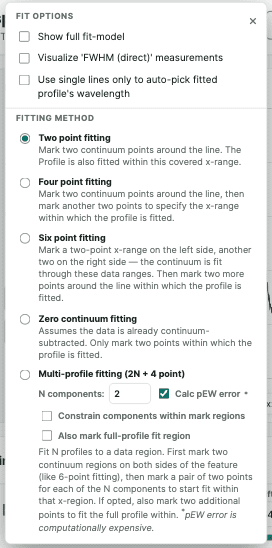
- Two point — click two points; the continuum is the straight line through them and the profile is fit over the wavelength range between them.
- Four point — two continuum points define the line, then two more points set the fit window (so the continuum anchors and the fit range are independent).
- Six point — mark a left continuum range (two points) and a right continuum range (two points); the continuum is the least‑squares straight line through all data inside both ranges. Two further points set the fit window. This is the most robust continuum for noisy data.
- Zero continuum — assumes the data is already continuum‑subtracted, so \(C(\lambda)\equiv 0\). Click only the two points bounding the fit window. (Pseudo‑equivalent width is undefined here and is reported as zero.)
- Multi‑profile (2N + 4 point) — fits N Gaussians on a shared continuum; see Multi‑profile fitting.
The least‑squares continuum (six‑point and multi‑profile) through points \((\lambda_i, f_i)\) in the chosen ranges has slope and intercept
\[ m = \frac{n\sum \lambda_i f_i - \sum \lambda_i \sum f_i}{n\sum \lambda_i^2 - (\sum \lambda_i)^2}, \qquad b = \frac{\sum f_i - m\sum \lambda_i}{n}.\]
Automatic line identification
After a fit, the tool labels the profile with the nearest shown line marker whose on‑plot position lies within 3 % of the fitted centre \(\mu\), and copies that line's rest wavelength into the card (which enables the velocity columns). Line sets participate in this matching (the nearest individual set wavelength is used) unless you enable Use single lines only to auto‑pick fitted profile's wavelength in Fit options. You can always override the name and rest wavelength on the card by hand.
Fit options
- Show full fit‑model — extend the drawn profile (and its continuum) to the full Gaussian extent, \(\mu \pm 3.8\,\sigma\), instead of only the clicked window.
- Visualize 'FWHM (direct)' measurements — overlay the smoothed profile and the peak / half‑maximum crossing points used for the direct FWHM (see below).
- Use single lines only to auto‑pick … — exclude line sets from automatic identification.
Fit measurements and their definitions
Each fit card reports two families of measurements: model‑based (analytic, from the fitted Gaussian) and direct (numerical, straight from the continuum‑subtracted data). Model and direct measured quantities may have different use cases depending on the quality of data and/or profile structure.
The spectrum flux density or intensity can be any units, which we assume here unit \(I\). The profile height and integrated flux are represented in units of \(I\), to get value in physical unit, just replace with spectrum's actual flux density unit.
Model‑based measurements
-
Mean \(\mu\) — fitted line centre (Å).
-
FWHM \(= 2\sqrt{2\ln 2}\,\sigma\) (Å).
-
Height \(A\) — amplitude relative to the continuum (flux units, \(I\)).
-
Flux (integrated line flux) — the analytic Gaussian area
\[ F = A\,\sigma\sqrt{2\pi}\quad (I\cdot\text{Å}).\]
If the spectrum flux unit \(I = \rm{erg/s/cm^2/Å}\) then flux unit becomes \(I\cdot\rm{Å}=\rm erg/s/cm^2\).
-
pEW — pseudo‑equivalent width, the continuum‑normalized line area
\[ \text{pEW} = \int \left(1 - \frac{f(\lambda)}{C(\lambda)}\right) d\lambda ,\]
integrated over the full model (\(\mu \pm 10\sigma\), where the Gaussian contribution is negligible at the limits). By this sign convention an absorption line has positive pEW and an emission line negative. pEW requires a non‑zero continuum.
Direct (data‑based) measurements
Let \(r(\lambda) = f(\lambda) - C(\lambda)\) be the continuum‑subtracted data.
- Flux (direct) — trapezoidal integral of the residual over the data points:
\[ F_\text{direct} = \int r(\lambda)\,d\lambda \approx \sum_i \tfrac{1}{2}\,(r_i + r_{i+1})(\lambda_{i+1}-\lambda_i).\]
-
pEW (direct) — the data analogue of pEW:
\[ \text{pEW}_\text{direct} = \int \left(1 - \frac{f(\lambda)}{C(\lambda)}\right) d\lambda = -\int \frac{r(\lambda)}{C(\lambda)}\,d\lambda ,\]
evaluated by the trapezoidal rule over the data inside the fit window.
-
FWHM (direct) — measured from the data rather than from \(\sigma\). The continuum‑subtracted profile is first smoothed with a locally quadratic (Savitzky–Golay‑style) filter whose window scales with the number of points in the region; the strongest peak is located, the half‑maximum level is taken as half the peak value, and the FWHM is the separation of the two points where the smoothed profile crosses that level (found by linear interpolation between samples):
\[ \text{FWHM}_\text{direct} = \lambda_\text{right,½} - \lambda_\text{left,½}.\]
Direct FWHM measurement would fail and skipped when the selected data window is too narrow to reach the half‑maximum crossing level.
-
Height (direct) — the peak height of the line above the continuum measured from the (smoothed) data, i.e. the data analogue of the model Height. It is reported even when FWHM (direct) cannot be measured, max position will be found within the selected window.
Direct measurements are robust to non‑Gaussian line shapes; large disagreements with the model values flag asymmetric or blended lines.
Visualize 'FWHM/Height (direct)' measurement option in fit options can be turned on to show the smoothed line, and the point of peak value and the half-maximum level crossing points on the line.
Velocity measurements
When a rest wavelength is set for the profile fit-result card, two kinematic quantities are reported using the relativistic Doppler relations:
- Mean velocity — the radial velocity of the line centre relative to its rest wavelength,
\[ v_\mu = c\,\frac{R^2-1}{R^2+1}, \qquad R = \frac{\mu}{\lambda_\text{rest}}.\]
-
FWHM velocity — the line width expressed as a velocity width,
\[ v_\text{FWHM} = \big|\,v(\mu + \tfrac{1}{2}\text{FWHM}) - v(\mu - \tfrac{1}{2}\text{FWHM})\,\big|,\]
with each edge converted to velocity by the same formula.
Uncertainties
Bootstrap errors
Parameter uncertainties come from a residual bootstrap. After the best fit, the fit residuals (data minus model) are resampled with replacement and added back to the model to create many synthetic datasets (300 by default); each is refit, and the reported error of a quantity is the sample standard deviation of its values across the resamples. This is applied to the mean, width (σ and FWHM), amplitude, pseudo‑equivalent width, and the direct measurements.
Propagated errors
The integrated Flux error is propagated analytically from the bootstrap errors of amplitude and width:
\[ \sigma_F = \sqrt{2\pi}\,\sqrt{(\sigma\,\sigma_A)^2 + (A\,\sigma_\sigma)^2}.\]
Velocity errors use the first‑order propagation of the wavelength error,
\[ \sigma_v \approx \frac{c}{\lambda_\text{rest}}\,\sigma_\lambda ,\]
accurate when \(\sigma_\lambda \ll \lambda_\text{rest}\) (the usual case).
Errors can be shown or hidden in the results table via Show errors.
Also read about error calculations for tabulated results in average same lines and error estimation sections.
Multi‑profile (blended line) fitting
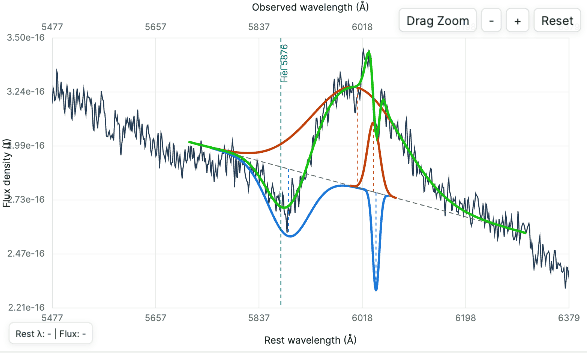
The Multi‑profile (2N + 4 point) method fits N overlapping Gaussians on a common continuum (the point count becomes 2N + 6 when you also mark an explicit fit region, see below):
\[ f(\lambda) = C(\lambda) + \sum_{k=1}^{N} A_k \exp\!\left[-\frac{(\lambda-\mu_k)^2}{2\sigma_k^2}\right].\]
How to use it:
- Set N components.
- Mark two continuum ranges, one on each side of the blend (four points → least‑squares continuum). The fit window is the gap between the two ranges.
- Mark a pair of points for each component (2N points). Each pair seeds one Gaussian: its centre is the midpoint of the pair, and the pair width is taken as the initial FWHM, i.e. \(\sigma_{0} = \text{width}/2.3548\).
- (Optional, if "Also mark full‑profile fit region" is on) Mark one more pair that sets the explicit fit data range; see the option below.
The amplitudes of all components are solved jointly by linear least squares at each step (the model is linear in the \(A_k\) once the \(\mu_k,\sigma_k\) are fixed), while the centres and widths are refined together.
Results. Each component becomes its own fit card titled Multi profile K – Comp.1 … Comp.N (K is the group number); cards of one group share a background tint. A bold combined model curve (continuum + sum of all components) is drawn over the data, and disappears if you delete the components. Because the direct (data‑based) measurements cannot be attributed to a single component of a blend, they are not reported per component; the model‑based values (mean, FWHM, height, flux, pEW) and their bootstrap errors are.
Options:
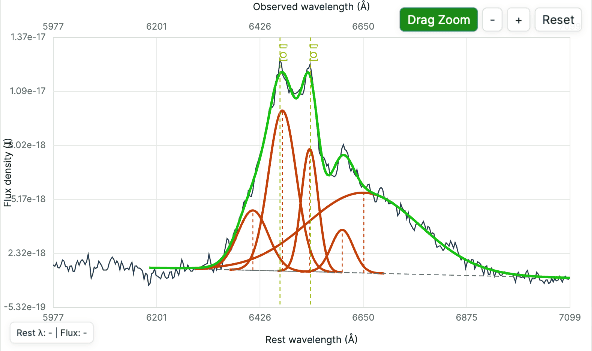
- Constrain components within mark regions — keep each component's centre inside the pair you marked and cap its width near the bracket width, with the search step scaled to the bracket. This strongly improves separation of closely overlapping lines, preventing components from drifting onto one another, swapping, or broadening to swallow the whole blend. For best results mark each pair at roughly the line's true width. When disabled, components are free within the whole fit window.
- Tie component FWHMs — force every component to share a single common width (σ, hence FWHM), instead of fitting each width independently. The shared width and the individual component centres (and amplitudes) are solved together. This is useful when the components are expected to be intrinsically the same width (e.g. doublet line of same species) and helps stabilise the fit of weak or heavily overlapping components.
- Calc pEW error — also bootstrap the per‑component pEW uncertainty. This is the most expensive part of the calculation (an integration per component per resample); turn it off to speed up fits with many components, in which case pEW is still reported but without an error.
- Also mark full‑profile fit region — by default the fit data window is the gap between the two continuum ranges. With this enabled you mark one extra pair of points after all components (so the method needs 2N + 6 points in total), and that pair defines the exact wavelength range of data used in the fit. This is useful when the blend extends beyond, or sits inside, the gap between the continuum windows — letting you set the fitted data range independently of where the continuum is anchored.
The results table
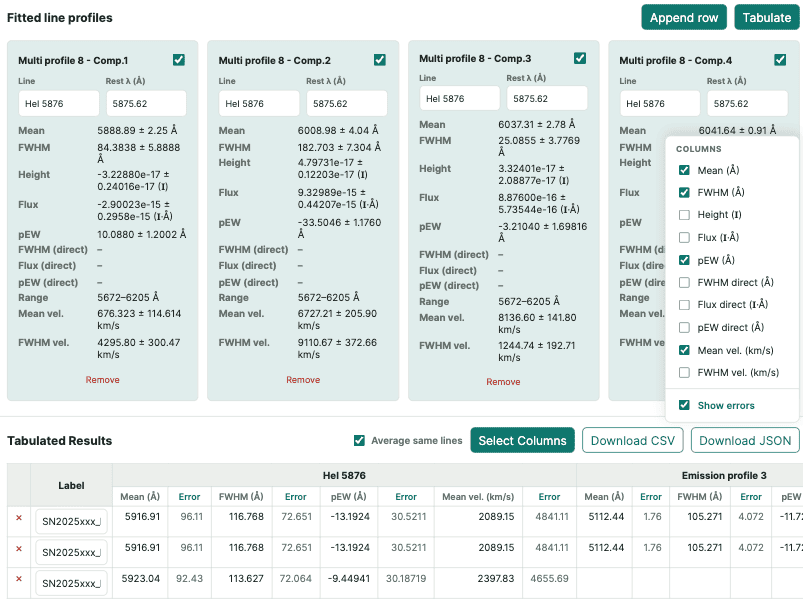
On each profile fitting, results cards are added with all fit parameters. After done with all the profile fits, click Tabulate to build a measurement table from the current fits, then grow it across many fits and files.
- Tabulate captures the current visible fits as one row (replacing the table; you are warned if it would discard several existing rows).
- Append row adds the current fits as an additional row — for example after loading a different spectrum — so you can collect measurements from many objects in one table.
- Each row has an editable Label (defaulting to the file name)
- The × deletes the row.
Columns are organized by line, grouped under each line's header with sub‑columns for the measurements. Lines align across rows by name; the same line fit twice in one row appears as separate column groups. Use Select Columns to choose which measurements appear, and Show errors to toggle the ± columns.
Averaging repeated lines
Enable Average same lines to combine, live, all fits of the same line (matched by rest wavelength) into one set of columns using an inverse‑variance weighted mean. For values \(x_i\) with errors \(\sigma_i\), weights \(w_i = 1/\sigma_i^2\):
\[ \bar x = \frac{\sum_i w_i x_i}{\sum_i w_i}, \qquad \sigma_{\bar x} = \frac{1}{\sqrt{\sum_i w_i}}.\]
The reported error combines this formal error with the scatter of the measurements about the weighted mean, added in quadrature:
\[ \sigma_\text{total} = \sqrt{\sigma_{\bar x}^2 + \sigma_\text{scatter}^2}, \qquad \sigma_\text{scatter}^2 = \frac{1}{n-1}\sum_i (x_i - \bar x)^2 .\]
Exporting
Download CSV writes the full table (all rows and columns, with a Label column and error columns when shown). Download JSON writes the same data as a list of row objects. Numeric values are formatted to about six significant figures, with errors rounded to a matching precision.
Error estimation
For partially blended spectral lines and P Cygni profiles, the local continuum level cannot be determined uniquely because neighboring spectral features contaminate the line profile. As a result, continuum placement introduces an additional source of uncertainty that is not captured by the formal fitting errors. To estimate this effect, the same line should be fitted multiple times using different plausible continuum selections.
When tabulating the results in spEXplore, the "Average same lines" option can be used to combine these measurements automatically. This procedure accounts for both the statistical fitting uncertainties and the uncertainty associated with continuum placement. The underlying methodology is outlined below and may be useful to describe in publications using results derived from spEXplore.
For each profile fit, the uncertainty is estimated using bootstrap simulations, providing a statistical error that reflects the noise properties of the observed spectrum. However, this uncertainty does not account for variations arising from different continuum placements. For blended lines and complex profiles, continuum placement is often the dominant source of uncertainty, and therefore the bootstrap error alone can significantly underestimate the true uncertainty.
To incorporate both sources of error, multiple measurements are obtained using different plausible continuum selections. The final parameter value is taken as the weighted mean of the individual measurements.
\[ \bar{x}_w = \frac{\sum_i w_i x_i}{\sum_i w_i}, \qquad w_i = \frac{1}{\sigma_i^2},\]
where \(x_i\) and \(\sigma_i\) are the fitted parameter and its bootstrap-derived uncertainty, respectively.
The statistical uncertainty of the weighted mean is then
\[ \sigma_{\rm fit} = \left(\sum_i w_i\right)^{-1/2}.\]
The uncertainty associated with continuum placement is estimated from the standard deviation of the measurements obtained using the different continuum selections, denoted by \(s_{\rm cont}\).
The final uncertainty is obtained by combining the statistical fitting uncertainty and the continuum-placement uncertainty in quadrature,
\[ \sigma_{\rm tot} = \sqrt{ \sigma_{\rm fit}^2 + s_{\rm cont}^2 }.\]
This approach accounts for both the random uncertainty arising from spectral noise and the additional uncertainty introduced by the non-unique placement of the continuum in blended or otherwise complex line profiles.
However, if a line is isolated with clear continuum, then bootstrap-derived error from single measurement should be sufficient.
Downloading the figure and plot data
Two buttons in the bottom‑right corner of the plot export what you see:
-
Download image — saves a PNG of the current plot view exactly as drawn (axes, spectrum, line markers, fitted profiles and overlays), on an opaque white background. It captures the figure only, without the surrounding controls. Use Reset / zoom first to frame the view you want.
-
Download data — saves a single ASCII text file containing every plotted dataset over the full wavelength range (not just the current zoom), appended one after another and separated by
#comment headers. The x‑axis is the rest‑frame wavelength in Å and columns are tab‑separated. The file contains:- a header block recording the source file name, the global redshift, and the λ‑unit multiplier;
- the spectrum as plotted (rest‑frame, binned, with deleted sections
removed):
wavelength flux; - each fitted profile — its model curve and continuum,
wavelength model_flux continuum, preceded by a comment line listing the fit parameters (mean, FWHM, σ, height, flux, pEW, rest wavelength); - the combined model of any multi‑profile group (continuum + sum of its components);
- the direct‑FWHM smoothed curve and its three measurement points (peak, and the left/right half‑maximum crossings) for each profile — included only when Visualize 'FWHM (direct)' measurements is enabled.
This lets you reproduce the exact figure (data and model curves) in any external plotting program.
This feature can also be used to simply converts FITS spectrum to ASCII. Just fresh open the app, load the .FITS file, select HDU, then download plot data, which will be just the spectrum in ASCII format.
Note, this feature is only meant to export data behind the plot, so that the figures can be regenerated as per convenience in external programs. Do not use this exported ASCII to load into the app to get back the profile fits, instead use Session load/save feature (below).
Sessions: saving and restoring work
Save Session writes a single .spx file containing everything needed to
resume: the spectrum, file name, redshift, binning, wavelength unit, common
velocity, all line markers and line sets, deleted sections, every fitted profile
(including multi‑profile groups), the results table, display options, and column
configuration. Load Session restores that state exactly.
If there are unsaved changes, the app will warn you before closing or navigating away.
It is also possible to load a session file from a link using URL parameter.